Definition
Browser-based AI agents automate internal applications by interacting with the UI the same way a human does: clicking, typing, navigating, and handling approvals. Unlike brittle scripts, modern agents combine recordings with self-healing selectors, progressive context, and trace logs—so automation remains reliable as screens and flows change.
- When APIs are missing, browser agents are the fastest path to automation for internal tools.
- Record real workflows and convert them into repeatable actions that run deterministically first.
- Reliability comes from self-healing selectors, exception handling, and LLM fallback when UIs change.
- Long-term memory turns one-off runs into an improving system: context persists across sessions and workflows.
- Trace logs and telemetry make agent runs auditable: what happened, why it happened, and where it failed.
- The best outcomes are hybrid: API connectors where they exist, browser agents where they do not.
Why internal applications are hard to automate (and why that matters)
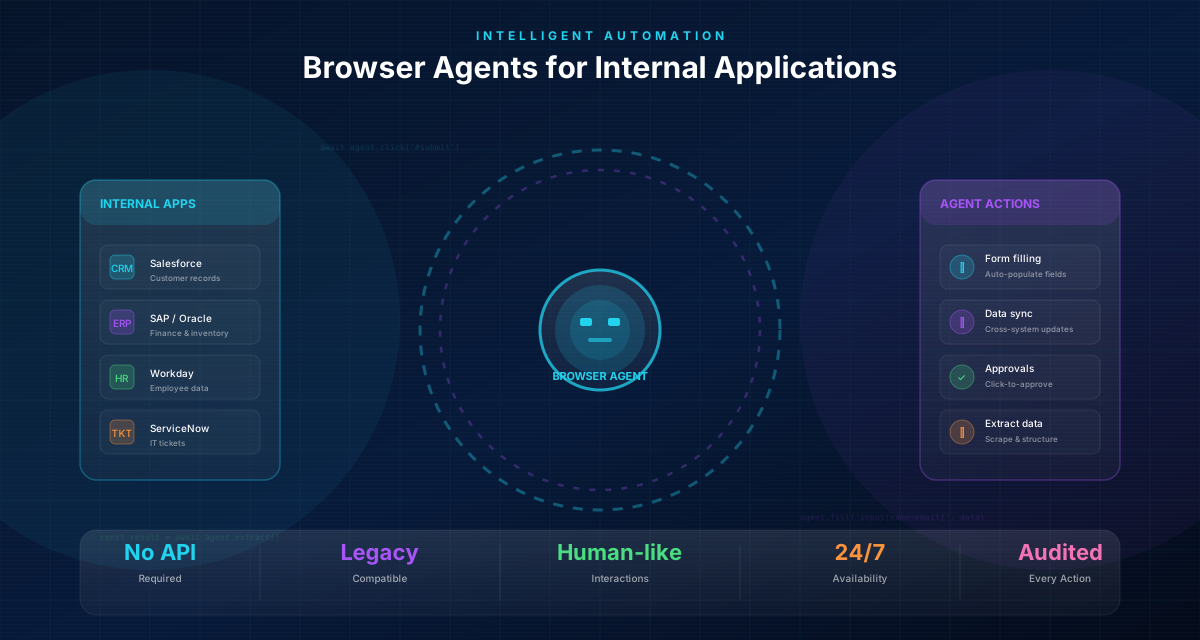
Internal tools are where high-value work happens: approvals, access changes, reconciliations, customer onboarding, compliance checks. They are also where automation fails most often.
Typical constraints:
- No stable APIs: the system is legacy, vendor-managed, or only partially exposed.
- Fragmented systems: a process crosses HR, finance, ticketing, email, and spreadsheets.
- Human approvals: controls are real and must be explicit.
- UI drift: labels, layouts, and selectors change with every release.
A browser-based agent solves a specific problem: it can execute the UI path that people already use today. But the real win is not “clicking faster”. The win is turning repeated work into a governed, observable workflow: owned, measured, and improved over time.
If you treat UI automation as a one-off script, it will break. If you treat it as a workflow asset with governance, memory, and traceability, it scales.
The hidden cost of missing connectors
When teams wait for an API that never arrives, automation stalls. Browser agents unlock value earlier, while you still build connectors for the long term.
What a browser-based agent is (and what it is not)
A browser agent is a workflow executor that can:
- navigate to pages
- click UI elements
- type into inputs
- switch tabs
- handle common keyboard actions
- complete a task and produce a structured outcome
What it is not:
- not an uncontrolled bot that “does whatever it wants”
- not a fragile macro that only works on one screen size
- not a replacement for approvals, controls, or accountability
In Process Designer, a browser agent is designed to run deterministically first (using recorded actions) and then use an LLM-assisted fallback when a step fails. That combination is the difference between a demo and an automation you can operate.
A practical mental model:
- deterministic actions = speed and repeatability
- LLM fallback = resilience to UI drift and small surprises
- governance + telemetry = safety, audits, and continuous improvement
How it works end-to-end: from real work to a governed automation
A reliable automation for internal tools needs more than “an agent”. It needs a system where every component supports the others.
1) Capture the workflow (recording)
You can record a real walkthrough of the process: clicks, navigation, and typing across tabs. Recordings are a practical input because they reflect what operators actually do.
2) Convert events into actions
Recorded events are cleaned (deduped, ordered, and merged). Keystrokes can be merged into meaningful inputs, so the workflow becomes readable and runnable.
3) Run deterministically, then recover
When the run starts, the agent plays back actions deterministically. If a step fails (selector drift, page state differences), an LLM-assisted fallback can take over for that step and continue safely.
4) Keep the run observable
Every run emits telemetry events: what step ran, what action was attempted, duration, and failure type. This becomes your audit trail and your debugging surface.
5) Improve with memory
Memory matters because internal work repeats with patterns: a customer list, an approval rule, a frequent exception. Persisting memory across sessions enables consistent behavior without re-learning from scratch.
6) Govern change
Automation is a living asset. Updates should be proposed, reviewed, and applied with traceable diffs—so you can improve without breaking production.
Recording-to-automation: build agents from walkthroughs (even in meetings)
The fastest way to automate an internal app is to start from what already works: an operator walking through the flow.
What makes recordings powerful:
- they capture the real happy path (not the idealized one)
- they expose the true handoffs between systems
- they reveal the exceptions people handle manually
In practice, teams often record workflows during enablement sessions: a screen-share, a training call, or a project meeting where someone demonstrates the process. A recording becomes a blueprint.
What gets captured
A good recording captures UI intent:
- where the operator navigates
- what they click
- what they type
- which tab the action belongs to
What gets generated
From the cleaned recording, Process Designer can generate a runnable action sequence (open tab, switch tab, click, input text, send keys) and a final “done” result.
How to make recordings reusable
To avoid “automation that only works for one case”, you standardize inputs:
- replace hard-coded values with variables (for example: request id, employee email, cost center)
- store validation rules near the step that needs them
- keep approvals explicit so humans stay accountable
Recordings are not just a shortcut. They are a repeatable intake method for automation work.
Record the exceptions on purpose
If you only record the happy path, you ship a workflow that fails in production. Record 2–3 common exceptions and model the repair loop early.
Reliability primitives: self-healing selectors, context control, and safe fallback
Internal apps change. A reliable browser agent expects change.
Self-healing selectors
When a brittle selector fails, the agent can derive and persist a more stable locator from attributes that teams control (for example: data-testid, aria-label, element id). Over time, that creates a small selector memory: repairs that make future runs more reliable.
Progressive context and compaction
Browser automation can generate a lot of context (screenshots, DOM state, action history). Passing all of it to every LLM call causes timeouts and costs. Progressive context solves this:
- keep only a sliding window of recent actions verbatim
- summarize older actions
- build step-specific context on demand
- store checkpoints so long runs are resumable
Deterministic first, LLM fallback second
A safe agent does not start by “guessing”. It executes known actions first. If a step fails, fallback is narrowly scoped: recover the step, then continue.
Exception queues and human repair loops
No automation is 100% autonomous. The correct design is to:
- route exceptions into a queue
- capture the context and logs
- assign an owner
- resolve and resume
Reliability is not magic. It is a set of primitives you operate intentionally.
Hybrid execution: connectors where possible, browser agents where necessary
Browser agents are most valuable where connectors are missing. But connectors are still the best option when they exist.
A practical enterprise architecture is hybrid:
- connectors for systems of record (email, calendar, files, chat, meeting platforms)
- browser agents for internal UIs (legacy portals, vendor consoles, custom admin tools)
Why hybrid wins:
- APIs handle high-volume data movement efficiently
- browser agents cover the gaps without blocking the project
- workflows can keep approvals and controls consistent across both paths
This approach avoids a false choice between “build a connector first” and “give up”. You can automate now and mature the integration strategy over time.
Pro Tip
Use connectors for data retrieval and writing when feasible. Use browser agents for UI-only steps, edge-case screens, or systems you cannot integrate with directly.
From meeting recordings and transcripts to automation opportunities
Automation work often starts long before a technical spec exists. It starts in meetings: someone explains the process, shares a screen, or reviews a recurring problem.
Process Designer supports an asset-first approach:
- ingest meeting artifacts (messages, files, transcripts, recording links)
- turn them into a searchable knowledge base
- build a compact project knowledge digest for fast priming
- discover patterns that indicate automation opportunities
From there, a knowledge-graph driven analysis can propose automation opportunities: repetitive handoffs, manual data flows, and integration choke points. Those opportunities can be turned into concrete agent proposals: create, modify, or run a browser agent with the right context.
The point is not “AI writes everything”. The point is a pipeline that turns real operational evidence into safe, governed execution.
Agent-to-agent (A2A) orchestration: specialists that collaborate under one workflow
Real automations are multi-skill. One agent is rarely enough.
A2A orchestration means you run a workflow as a coordinated set of agent roles:
- a deterministic executor for recorded steps
- a dynamic browser agent for recovery and UI drift
- tool-enabled agents for connector actions and data retrieval
What makes this work in practice:
- a shared execution context (variables and intermediate results)
- progressive context management (so the LLM sees what it needs, not everything)
- memory that persists what should not be re-learned each run
- unified telemetry across the workflow run
Instead of building a monolith, you compose specialized components that can be tested, traced, and improved independently.
Long-term memory: make your agents consistent across runs, sessions, and workflows
Most internal processes depend on context:
- how your organization names systems and teams
- which data fields matter and where they live
- which exceptions are common and how to repair them
- what “good output” looks like
Long-term memory solves a practical operational problem: it prevents your agents from behaving like a new hire every time.
In Process Designer, memory can be persisted as structured content with a memory type (context, episodic, long-term) and a retention policy. That enables:
- cross-session continuity (today’s run benefits from last week’s run)
- cross-workflow sharing (common rules and definitions reused)
- safer automation (known exceptions and controls documented and applied)
Memory is not only about the model. It is about the operating system around the model: ownership, retention, and governance.
Trace logs and telemetry: auditability for browser agents and automations
If you cannot explain what the agent did, you cannot operate it.
A production-grade automation should emit:
- step-by-step events (phase, timestamp, duration)
- action type and outcome (ok or failure)
- failure classification (what broke and where)
- selector repair events (what was fixed and why)
- context management stats (how context was reduced and summarized)
With trace logs, teams can:
- debug failures quickly
- prove compliance (who approved what, what changed)
- measure reliability and cost
- identify where a workflow needs better inputs or exception handling
Trace logs are also the bridge between automation and governance: they make reviews concrete and improvements measurable.
Don’t run blind
If an automation has no trace logs, it will become a support burden. Observability is not optional for internal-tool automation.
Security and guardrails for internal-tool automation
Internal applications often contain sensitive data. Browser agents must operate with constraints.
Common guardrails teams implement:
- limit side-effectful actions by default
- isolate execution sessions and track who triggered the run
- keep approvals explicit for high-risk steps
- sanitize run traces to avoid storing large binary payloads
- enforce retention policies for memory and traces
This is how you keep the speed of agents without turning them into an uncontrolled risk surface.
Use case library: high-ROI internal workflows that work well with browser agents
Browser agents are not for everything. They are ideal for UI-heavy internal work with clear outcomes.
Examples:
- Access requests: validate request, create user/group assignments in internal admin portals, route approvals, log evidence.
- Purchase approvals: collect quotes, create PO in ERP UI, route approval, attach documents, confirm receipt.
- Customer onboarding: open internal tooling, create accounts, configure permissions, trigger welcome messages, document completion.
- Finance operations: download reports, reconcile figures, update dashboards, escalate mismatches.
- Compliance evidence: navigate to vendor consoles, export logs, upload artifacts, record an audit trail.
The best use cases share three characteristics:
- repeatable UI path
- clear exception patterns
- strong need for traceability
Start where people complain
The highest-ROI automations are often the ones people dread: repetitive admin work with frequent interruptions and approvals.
Worked example: automate an access request in a UI-only admin portal
Let’s make this concrete.
Scenario
An employee needs access to an internal system. There is no API. The only path is an admin portal UI. The process must remain compliant.
Workflow design (what the automation must include)
- Request intake: requester identity, system name, role needed, justification, manager.
- Validation: required fields present, system and role are valid, request is not duplicated.
- Approval: manager approves (and optionally security approves for privileged roles).
- Execution (browser agent): navigate to portal, search user, open access page, add role/group, confirm.
- Evidence: capture the approval outcome and execution result (timestamp, target role, operator or agent identity).
- Notification: inform requester and owner.
Where reliability breaks (and how to design for it)
- UI drift: the “Add role” button moved. Persist selector repairs based on stable attributes.
- State differences: the user already has a role. Add a check and branch to a safe outcome.
- Portal timeouts: treat timeouts as recoverable; retry or re-authenticate.
How trace logs make this operable
A run trace should allow you to answer:
- which approvals were granted
- which UI steps were executed
- what failed (if anything) and what recovery was attempted
- what evidence was captured
This is the difference between “it sometimes works” and “we can run this 500 times a week and trust it”.
Design rule
If a workflow changes access rights, approvals and evidence capture are not optional. Build them into the workflow, not into tribal knowledge.
Decision framework: connector, browser agent, or hybrid?
Use this framework to choose the right execution path.
Choose a connector when
- the system has stable APIs
- data volume is high (bulk reads/writes)
- you need strong transactional guarantees
- the vendor supports versioned interfaces
Choose a browser agent when
- there is no API or it is incomplete
- the work is UI-only (admin portals, legacy consoles)
- the workflow depends on interactive screens or approvals
- you need value now and cannot wait for integration projects
Choose hybrid when
- you can fetch data via APIs but must execute final steps in a UI
- you want connectors for read-heavy steps and a browser agent for the gap
- you want resilient fallback paths when one system is unavailable
A practical pattern is: connectors for data movement, browser agents for the “last mile” in internal tools, and approvals for high-risk decisions.
Hybrid reduces long-term risk
Browser agents unlock value early. Connectors reduce operational load later. A hybrid design lets you deliver now and mature safely over time.
Make your internal UI automation-ready (small changes, big reliability gains)
Browser agents are most effective when the UI is designed with stability in mind. The good news: you do not need a redesign.
The 6 “automation-ready” signals
- Stable attributes exist for critical elements (for example
data-testid,aria-label, stable ids). - Forms are predictable: labels match inputs, required fields are explicit, validation messages are visible.
- Navigation is consistent: the same task lives in the same place across releases.
- States are explicit: success/failure states are not only implied by layout changes.
- Errors are actionable: the UI shows what failed and how to fix it.
- Roles are real: UI permissions map to actual operational roles, not shared admin accounts.
A checklist you can give your internal-app team
- Add
data-testidto: primary buttons, submit actions, search fields, confirmation modals. - Add
aria-labelto icon buttons (and keep it stable across releases). - Avoid randomly generated element ids for important actions.
- Keep a unique, stable label text for each form field.
- Ensure errors appear in the DOM (not only as transient toasts).
- Provide a dedicated “confirmation” element after critical writes (saved/created/updated).
- Keep “back” and “cancel” behavior consistent.
These improvements also help accessibility and end-to-end testing. Most teams can ship them in a single sprint — and they reduce automation maintenance dramatically.
Invest once, benefit everywhere
Stable attributes are a one-time investment that improves QA, accessibility, and automation reliability at the same time.
Exception handling playbook: fail safely, repair quickly, and resume cleanly
Internal-tool automation fails for predictable reasons: missing data, permission differences, UI drift, and inconsistent state. Designing for exceptions turns failures into a managed workflow.
The 5 exception patterns that cover most reality
-
Pre-flight validation
- validate required inputs before opening the UI
- verify permissions/role context up front
-
Idempotency checks
- before creating, check if the entity already exists
- before adding a role, check if the user already has it
-
Timeouts + retries (with backoff)
- retry only when the failure is likely transient
- log each attempt and stop after a clear limit
-
Re-authentication and session drift
- detect login screens and expired sessions
- re-auth or route to a human repair loop
-
Safe stop + repair loop
- fail closed for high-risk changes
- capture evidence (what was attempted, where it failed)
- route to an exception queue with an owner
- resume after repair with the original context
What “good failure” looks like
A good failure is not silent. It is a structured outcome: reason, evidence, next action, and ownership.
This is where trace logs and telemetry matter: they turn exceptions into a backlog you can fix — and into reliability improvements you can measure.
Treat exceptions as product feedback
If the same exception happens repeatedly, the workflow is telling you what to standardize next: better inputs, stronger validation, or a connector where UI automation is too fragile.
Templates you can copy: intake brief, recording script, and operations runbook
High-performing teams standardize how they build and operate automation. Use these templates to start.
Template 1: Automation intake brief (one page)
- Process name:
- Owner (business):
- Owner (IT):
- Trigger (what starts it):
- Definition of done:
- Inputs (variables):
- Systems touched (UI + connectors):
- Approvals (who, when, what evidence):
- Top exceptions (and how to repair):
- KPIs (cycle time, exception rate, rework):
Template 2: Recording script (capture what matters)
- Happy path walkthrough
- 2–3 exception walkthroughs
- Notes for variable placeholders
- Notes for “state checks” (already exists? already approved?)
Template 3: Operations runbook (so it scales)
- Monitoring: what “healthy” looks like
- Escalation: who owns failures
- Release check: what to validate after UI changes
- Telemetry review cadence (weekly/monthly)
- Retention rules for memory and traces
Evidence checklist (for audits)
- approval outcome and approver identity
- timestamped execution result
- what was changed (role/group/value)
- link to run trace for the session
Templates do not slow you down — they remove ambiguity and make reliability repeatable across workflows.
Worked example: purchase approval across email, files, and an ERP UI (hybrid execution)
A classic internal workflow spans systems that were never meant to be orchestrated.
Scenario
A team needs to purchase software or equipment.
- Request starts in chat or email.
- Quote is stored in Drive/OneDrive.
- Approval is required (manager + finance).
- Final step is UI-only in the ERP/procurement portal.
A hybrid workflow design
-
Intake + normalization (connector)
- collect requester, vendor, amount, cost center
- validate required fields and policy thresholds
-
Evidence collection (connector)
- pull the quote file and attach it to the request context
- record a stable link to the source document
-
Approvals (workflow governance)
- route to manager approval
- if amount exceeds threshold, route to finance approval
- capture approval outcome + timestamps
-
Execution (browser agent in ERP UI)
- open the procurement portal
- create the PO request
- populate vendor, cost center, line items
- attach evidence link or upload file (depending on portal capabilities)
- submit and capture confirmation id
-
Post-actions (connector)
- notify requester and owners
- update a tracker (spreadsheet, ticket, or internal dashboard)
Where this breaks in real life
- Vendor name mismatch: add a lookup step (and a human review path)
- Portal session expires mid-run: detect login screen, re-auth or route to repair
- Duplicate request: check existing PO ids before creating
What “done” looks like
- approvals captured
- ERP confirmation id captured
- evidence link captured
- trace log link stored for audit
This is the kind of workflow where browser agents shine: the UI-only step becomes operable without waiting for an ERP connector project.
Start with evidence and controls
Approval-heavy flows fail when evidence is missing. Make evidence capture a first-class step, then automate execution safely.
When browser agents are the right tool (and when connectors win)
Browser agents unlock automation when APIs are missing. But they are not the best solution for every workload. Use this section as a practical decision guide.
Best-fit scenarios for browser agents
- UI-only internal tools (admin portals, vendor consoles, legacy apps)
- Clear, repeatable paths with a stable definition of done
- Approval-heavy workflows where controls must remain explicit
- “Last-mile” execution when you can fetch data via APIs but must finish in a UI
Scenarios where connectors usually win
- High-volume data movement (thousands of records per run)
- Strict SLAs where UI latency is unacceptable
- Transactional integrity requirements that need API-level guarantees
- Frequent UI redesigns where the surface changes weekly
A simple decision matrix
| Situation | Best approach | Why |
|---|---|---|
| No API, UI-only portal | Browser agent | Fastest path to execution |
| API exists and is stable | Connector | More reliable + scalable |
| Approval + evidence required | Workflow + approvals + trace logs | Governance is part of the product |
| Hybrid reality (some APIs, some UI) | Hybrid (connectors + browser agent) | Avoid blockers, mature over time |
| High-volume sync | Connector (or batch integration) | UI is not a data pipeline |
The hybrid path (how most teams evolve)
Start with a browser agent to capture value now, then incrementally replace the heaviest steps with connectors as your integration strategy matures. The workflow stays the same — only the execution blocks change.
The outcome you want is not “an agent that clicks”. It’s a governed automation capability that is measurable, auditable, and resilient.
UI automation is not a data pipeline
If the primary goal is to move large datasets, build connectors. Use browser agents for UI-only gaps and the last mile — where the value is blocked otherwise.
Implementation playbook: go from first recording to a reliable production run
A practical rollout is iterative.
Week 1: pick and baseline
- choose one internal workflow with a clear owner
- baseline cycle time and exception rate
- define what “done” means and what evidence must be captured
Week 2: record and ship v1
- record the happy path and 2–3 exceptions
- convert the recording to actions
- run deterministically with trace logs
- keep approvals explicit
Weeks 3–4: harden
- add selector repairs for brittle steps
- add exception queue and repair loop
- add retries and timeouts where relevant
- move repeated context into long-term memory
Ongoing: operate
- review failures monthly
- turn frequent exceptions into workflow improvements
- expand to adjacent processes with the same playbook
The result is not a one-off bot. It is an automation capability your team can repeat.
Common mistakes to avoid
Learn from others so you don't repeat the same pitfalls.
Automating before you understand the real process
You ship a workflow that operators immediately work around.
Record the real workflow, including common exceptions, then improve intentionally.
Relying on brittle selectors
Every UI release becomes an incident.
Prefer stable attributes and persist selector repairs as a reliability primitive.
No trace logs
You cannot audit, debug, or improve what you cannot observe.
Make telemetry and run traces a requirement for production automation.
Trying to remove all humans
High-risk steps need approvals and accountability.
Automate stable work, keep approvals explicit, and build a repair loop for exceptions.
Take action
Your action checklist
Apply what you've learned with this practical checklist.
Pick one internal workflow with a clear owner
Record the happy path plus 2–3 common exceptions
Convert the recording into actions and run deterministically
Add approvals where decisions carry risk
Enable trace logs and define what “success” means
Persist selector repairs and track failure categories
Store reusable context in long-term memory with retention rules